Demo Projects
Sample projects and technical demonstrations that showcase HGE's capabilities and provide learning material.
Learning from Examples
Demo projects are one of the best ways to learn game engine usage. Each demo below focuses on specific features and techniques, providing working code you can study, modify, and build upon.
Particle Effects
Fire, smoke, sparks, and magic effects using the particle system. Learn emission patterns, color gradients, and physics parameters.
Sprite Animation
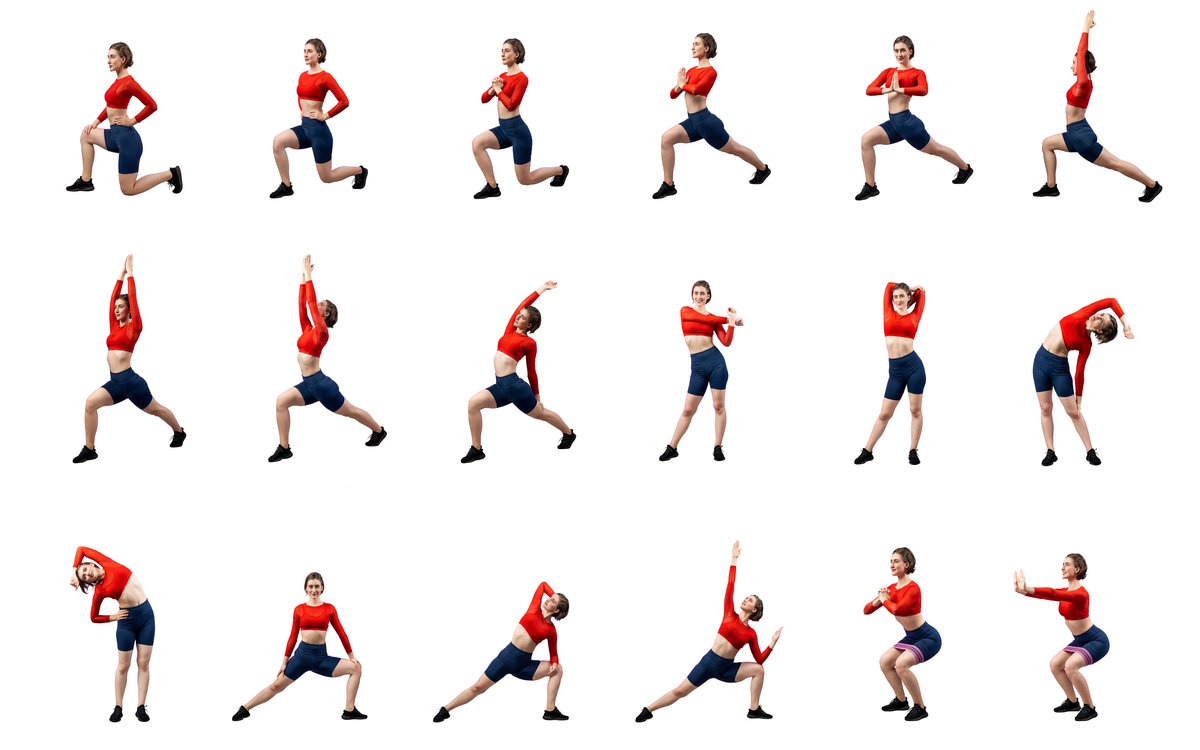
Character movement, frame sequencing, and state-based animation. Demonstrates hgeAnimation class usage.
Distortion Mesh
Image warping, wave effects, and grid-based transformations using the distortion mesh system.
Audio Playback
Music streaming, sound effects, volume control, and audio synchronization techniques.
Collision Detection
Bounding box and per-pixel collision detection for sprites and game objects.
GUI Framework
Buttons, sliders, and interactive menus using HGE's built-in GUI system.
Demo Code Patterns
The demos showcase common patterns you'll use in your own games:
Game Loop Structure
bool FrameFunc()
{
    // Get time since last frame
    float dt = hge->Timer_GetDelta();

    // Handle input
    if (hge->Input_GetKeyState(HGEK_UP))
        playerY -= SPEED * dt;

    // Update game objects
    for (auto& enemy : enemies)
        enemy.Update(dt);

    // Check collisions
    CheckAllCollisions();

    // Return true to exit
    return hge->Input_GetKeyState(HGEK_ESCAPE);
}
Resource Loading Pattern
bool LoadResources()
{
    // Load textures
    texPlayer = hge->Texture_Load("player.png");
    if (!texPlayer) return false;

    // Create sprites from textures
    sprPlayer = new hgeSprite(texPlayer, 0, 0, 64, 64);
    sprPlayer->SetHotSpot(32, 32);

    // Load audio
    sndShoot = hge->Effect_Load("shoot.wav");
    musBackground = hge->Music_Load("bgm.ogg");

    return true;
}

void FreeResources()
{
    delete sprPlayer;
    hge->Texture_Free(texPlayer);
    hge->Effect_Free(sndShoot);
    hge->Music_Free(musBackground);
}
State Machine Pattern
enum GameState { STATE_MENU, STATE_PLAYING, STATE_PAUSED, STATE_GAMEOVER };
GameState currentState = STATE_MENU;

bool FrameFunc()
{
    switch (currentState)
    {
        case STATE_MENU:
            return UpdateMenu();
        case STATE_PLAYING:
            return UpdateGame();
        case STATE_PAUSED:
            return UpdatePaused();
        case STATE_GAMEOVER:
            return UpdateGameOver();
    }
    return false;
}
Included SDK Samples
The HGE SDK typically includes these tutorial projects:
Tutorial 01: Minimal Application
Basic engine initialization and the simplest possible HGE program.
Tutorial 02: Using Sprites
Loading textures and rendering sprites with basic transformations.
Tutorial 03: Input Handling
Keyboard, mouse, and joystick input processing.
Tutorial 04: Font Rendering
Bitmap font loading and text display.
Tutorial 05: Sound and Music
Audio playback and control.
Tutorial 06: Particle Systems
Using the particle editor output and particle rendering. See the Tutorial 06 documentation.
Tutorial 07: Render Targets
Off-screen rendering for effects and optimization.
Tutorial 08: Animation
Frame-based sprite animation using hgeAnimation.
Building and Running Demos
To work with the demo projects:
- Open the project in your IDE (most demos have Visual Studio project files)
- Verify paths are correct for HGE headers and libraries
- Build the project in Debug mode for development
- Copy DLLs (hge.dll, bass.dll) to the output directory
- Copy assets (images, sounds) to the output directory
- Run and experiment with the code
Modifying Demos
Demos are meant to be modified. Try these exercises:
- Change parameters — Adjust speeds, colors, and sizes
- Add features — Extra controls, new effects, more objects
- Combine techniques — Mix particles with sprites, add audio to animations
- Break things — See what happens when you change code, then fix it
Frequently Asked Questions
-
Where can I find the demo source code?
Demo source is included in the HGE SDK, typically in a tutorials or samples folder. Check your downloaded package.
-
Can I use demo code in my own projects?
Yes, tutorial and demo code is meant for learning and can typically be adapted for your projects. Check the license for any specific restrictions.
-
The demo runs but shows a black screen — what's wrong?
Usually this means asset files (images, sounds) aren't being found. Make sure they're in the working directory or the path specified in code.
-
How do I create my own particle effects?
Use the Particle Editor tool included with HGE to design effects visually, then load them in your code.